SDB:Ndiswrapper
Why (and why not) NDISwrapper
Some vendors do not release specifications of the hardware or provide a Linux driver for their wireless network cards. The NDISwrapper project implements Windows kernel API and NDIS (Network Driver Interface Specification) API within the Linux kernel. A Windows driver for wireless network card is then linked to this implementation so that the driver runs natively, as though it is in Windows, without binary emulation.
However please note that you should use native wireless driver (such as b43, ath9k, etc) provided by the kernel whenever possible. NDISwrapper works by bridging Windows drivers into kernel space; for kernel developers this is a violation of the GPL license of the kernel. Furthermore, NDISwrapper does not work with standard kernel features, such as 4K stacks, and exposes the user to binary-only drivers in kernel space that the user cannot modify or fix. Furthermore, NDISwrapper does not work at all without the Windows drivers, which 1) are not redistributable and 2) are not open source. In addition, because NDISwrapper is tied to the kernel, bugs in the Windows's wireless drivers have the potential to cause kernel panic even thought the same bugs may not cause problems in Windows. Thus there is stability issue to consider as well. A further problem is that if you encounter a kernel bug that results in an oops, most kernel developers will ask you to reproduce the problem without tainting the kernel without loading any non-GPL drivers.
The better solution to NDISWrapper
What it comes down to is NDISWrapper is a solution of last resort. If your wifi card does not have a free software compatible Linux driver (and firmware) consider purchasing a new one. Be aware that most places selling Linux compatible cards do not support Linux and the chipsets are likely not free software compatible.
This means the cards won't be supported by the free software community and you are at the mercy of the chipset manufacturer for support. You may find your card no longer works when the card is discontinued or doesn't work at all with your distribution of choice.
There are few places you can get cards from which clearly indicate the chipset or free software support. At the moment the only clear source for free software compatible cards is ThinkPenguin.com.
Alternatively it is possible to find free software compatible cards based on the chipset. This is a bit more difficult and generally users find challenging as documented chipsets don't match the model numbers as indicated on available lists found online. This is because manufacturers change chipsets without changing model numbers.
Getting NDISwrapper
From openSUSE media
Ndiswrapper is included with your openSUSE installation CDs/DVD. Use the software management utility in YaST and make sure the following packages are installed:
- ndiswrapper
- ndiswrapper-kmp-[default|smp|xen]
- wireless-tools
Choose the proper kernel module package (kmp) for your architecture. To find out which kernel you're running:
uname -r
From driver:wireless repository
You can obtain the latest version of NDISwrapper from the driver:wireless repository.
- First, check the version of the kernel you're running by:
uname -r
- Then, obtain root permission by running
su
- Depending on your openSUSE version, you must add the correct repository:
kernel 3.4.6-2.10 i586/x86_64 GNU/Linux (openSUSE 12.2)
zypper ar http://download.opensuse.org/repositories/driver:/wireless/openSUSE_12.2 ndiswrapper
kernel 3.7.10-1.1 i586/x86_64 GNU/Linux (openSUSE 12.3)
zypper ar http://download.opensuse.org/repositories/driver:/wireless/openSUSE_12.3 ndiswrapper
kernel 3.10.5-20.g4e0ffc2 i586/x86_64 GNU/Linux (openSUSE Tumbleweed)
zypper ar http://download.opensuse.org/repositories/driver:/wireless/openSUSE_Tumbleweed ndiswrapper

- After you have added the repositories you can run the command to install NDISwrapper depending on the kernel you have:
If you have "desktop" kernel:
zypper in ndiswrapper ndiswrapper-kmp-desktop
If you have "default" kernel:
zypper in ndiswrapper ndiswrapper-kmp-default
If you have "pae" kernel:
zypper in ndiswrapper ndiswrapper-kmp-pae
If you have "xen" kernel:
zypper in ndiswrapper ndiswrapper-kmp-xen
- After done installing, you can remove the repository by running:
zypper rr ndiswrapper
From source code
You can also download and compile the latest versions directly from the ndiswrapper site.
Obtaining the Windows driver
You may be able to determine which driver you need by looking for your specific hardware in the ndiswrapper compatiblity list
From your Windows partition
If you have a dual-boot machine and you have your card properly working in Windows, then one way to get your driver is to get it from the Windows partition itself. [Remember that if your Windows installation is 32bit, your driver will be 32bit and likewise for 64bit Windows, your driver will be 64bit]
Under Windows, go to the Device Manager and find your wireless card under "Network adapters". Right-click on this and go to Properties->Driver->'Driver Details...'. Here you should find the path to a *.sys file, usually located in your C:\windows\system32\drivers\ directory.
Now you will use the Windows "Search" functionality to find the corresponding *.inf file, which is nothing more than a simple text file (try opening one!) with a list of all the required driver's files. So a sample search query in Windows would be:
| All of part of the file name: | *.inf |
| A word or phrase in the file: | <the *.sys path found above> |
| Look in: | Local Hard Drives (C:) |
This search may take a while! When you've found it, look inside the *.inf file with a text editor and see if you need to find any more files. If you're lucky, everything should be in a single directory (for example C:\Program Files\Atheros\Drivers\). Copy all these files to a single location (e.g. in /home/myuser sub-tree) or to an external USB drive which is accessible to your Linux system.
From the driver installation software
There are several places where you can try to find your drivers, listed here in order of preference:
- The "download" page/section of your PC or card manufacturer's support web site
- the installation CD that came with your hardware
- by searching for your .sys file with Google (Advanced, if you didn't try previous two ways yet, you don't even know the name of the .sys file)
If you're best lucky, you will find the proper .inf/.sys and associated files very easily. (Although most of the times you're of very bad luck)
Most of the times, you will need to extract drivers from an .exe or .cab file by yourself. Below will teach you how, example taken from Netgear WNA3100 (BCM43231).
Extracting drivers is a trival work. Because there're two formats for .exe/.cab under Windows: Normal, and those createdby InstallShield, they both have a same suffix.
Go to http://downloadcenter.netgear.com/en/, search "WNA3100" and download Windows drivers (WNA3100_V2.1.0.4.zip 108MB)
Create drivers' directory, copy and unzip:
mkdir ~/bcm43231
mv ./WNA3100_V2.1.0.4.zip ~/bcm43231
unzip WNA3100_V2.1.0.4.zip
We just need drivers, the "Genie Setup" is an utility installer to setup your card under Windows, you don't need that stuff.
cd WNA3100_DriverOnly_2.1.0.1_signed
Now we're facing a Setup.exe driver, let's try using `cabextract` (Command Line Utility) to test if it's a self-extracting Cab file.
Install cabextract
sudo zypper in cabextract
Try uncompressing
cabextract Setup.exe
If you met:
Setup.exe: no valid cabinets found
Then it proves that this .exe is not a self-extracting Cab, but a .exe installer created by InstallShield. There's no programs that can uncompress this format, so we need to use a Windows open source utility Universal Extractor to do that: You can run Windows directly or indirectly under a Virtual Machine, or you can use `wine`. We use wine here:
sudo zypper in wine
wine ./UniExtract.exe
So using Universal Extractor we successfully uncompressed a Disk1 directory. There's still no drivers inside, but a data1.cab and a data2.cab file.
Try uncompressing
cabextract data1.cab
If you met:
WARNING; found InstallShield header. This is probably an InstallShield file. Use UNSHIELD from www.synce.org to unpack it.
Then it proves it's still a Cab created by InstallShield instead of a normal Windows self-extracting Cab. cabextract suggests us to uncompress it using `unishield`:
sudo zypper in unishield
mkdir data1
unishield -d ./data1 x data1.cab
mkdir data2
unishield -d ./data2 x data2.cab
Now data1 and data2 directories were filled with contents, let's find if there's .inf inside:
find ./data1 -name "*.inf"
./data1/Win8_x86/bcmwlhigh6.inf
./data1/Win8_x64/bcmwlhigh6.inf
Congrats! Copy those two directories Win8_x86 and Win8_x64 to somewhere your Linux can read and it's done!
Dealing with multiple *.inf files
If there's two or more .inf files don't panic, each one is for a different version of windows. My driver's disc has two:
bcmwl5a.inf
and
bcmwl5.inf
The first is for win98 the second is for Win2K, Me, and XP. In my case, the win 98 driver works and the xp didn't.
Installing your drivers
- Open up a console window and obtain the root permission: (if you don't know what that is, the su command means "substitute user" which can be the super user root. It will ask you the root password)
su -
- Now type:
ndiswrapper -i /path/to/drivers/bcmwl5a.inf
Be sure to include the actual path to your .inf file.
cd '/home/where the/inf file is'
and after that you can install the driver by just using the .inf filename:
- If all goes well, type:
ndiswrapper -l
- If you installed a valid/compatible Windows-driver, ndiswrapper will display something like this:
<driver-name> : driver installed
device (xxxx:xxxx) present (alternate driver: <native-driver-name>)
Where <driver-name> shows the name of the windows driver installed with ndiswrapper and <native-driver-name> is the name of the Linux native driver being overridden.
blacklist <native-driver>
where <native-driver> is the actual name of the driver to be blacklisted.
- If ndiswrapper says "invalid driver" then you need to uninstall that driver and try a different one.
- To uninstall a driver, you need to type:
ndiswrapper -r <then the name of the driver to uninstall>
- An additional check can be to look at
/etc/ndiswrapper
if a directory named as the installed driver is there available.
USB WLAN stick
If you have a USB WLAN Stick there is an extra step that you need to do to properly install the driver. You need to provide NDISwrapper the VendorID and the ProductID of your USB WLAN stick with the -d option. Look for the id's in YaST Hardware Information category USB. Alternatively you can also run:
lsusb
Which you should be able to get two four-characters/digits numbers like 168c and 0013.
To link the USBID to the driver you have to type:
ndiswrapper -d xxxx:xxxx <then the name of the driver>
have a look with the command:
dmesg | tail
for successfully loading/connecting the driver.
If it works you can write the alias for the ndiswrapper in the modules.conf with
ndiswrapper -m
Load NDISwrapper with the command
modprobe ndiswrapper
after that you can configure it with Yast
Configuring your card in YaST
If you have problem getting the wireless card being detected by (K)NetworkManager, you may need additional steps to configure the network card.
There are many possible configurations possible. Here is only a typical example:
Screenshots walkthrough
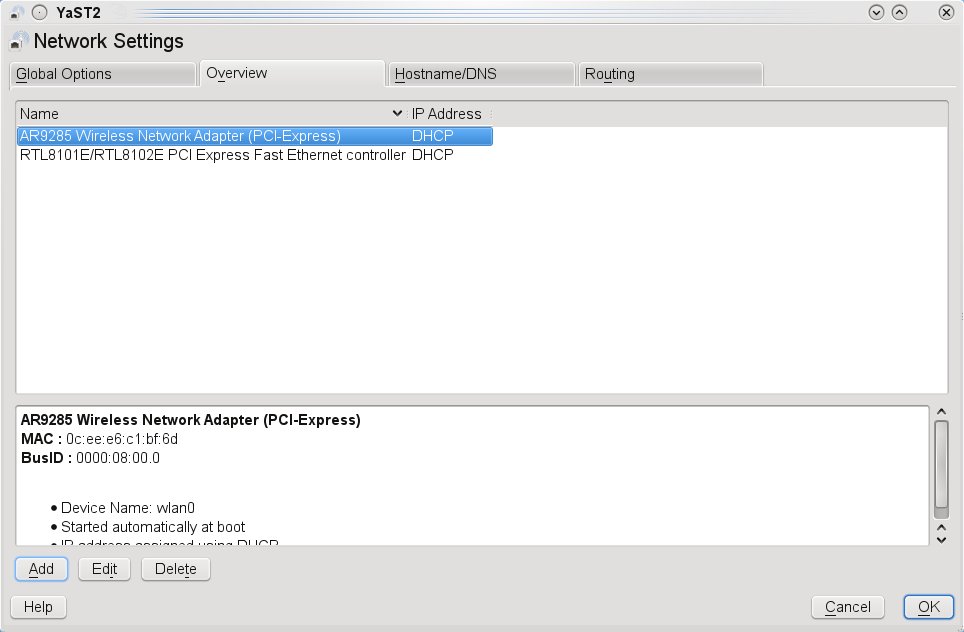
Screen 1
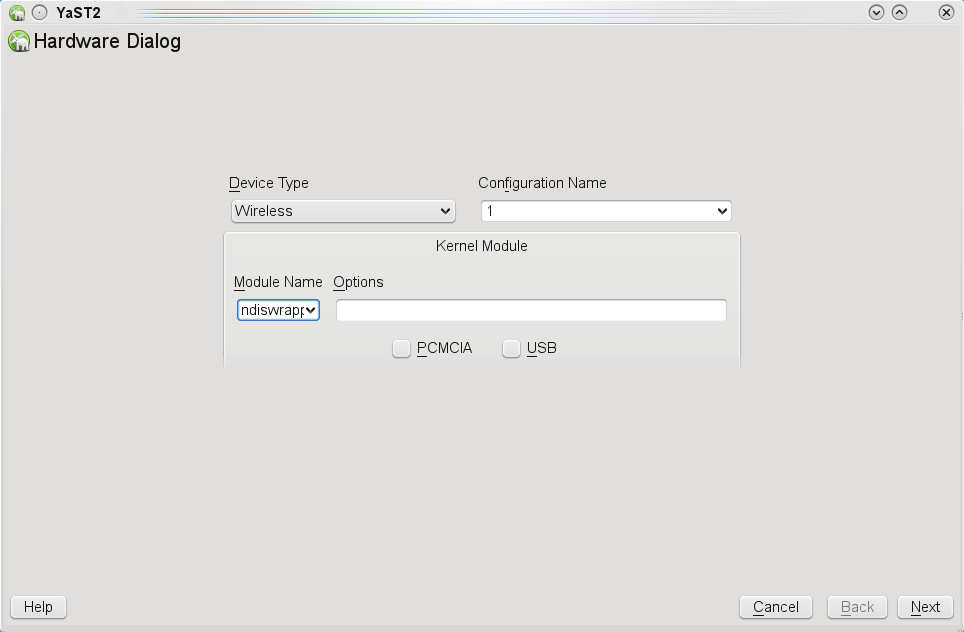
Screen 2
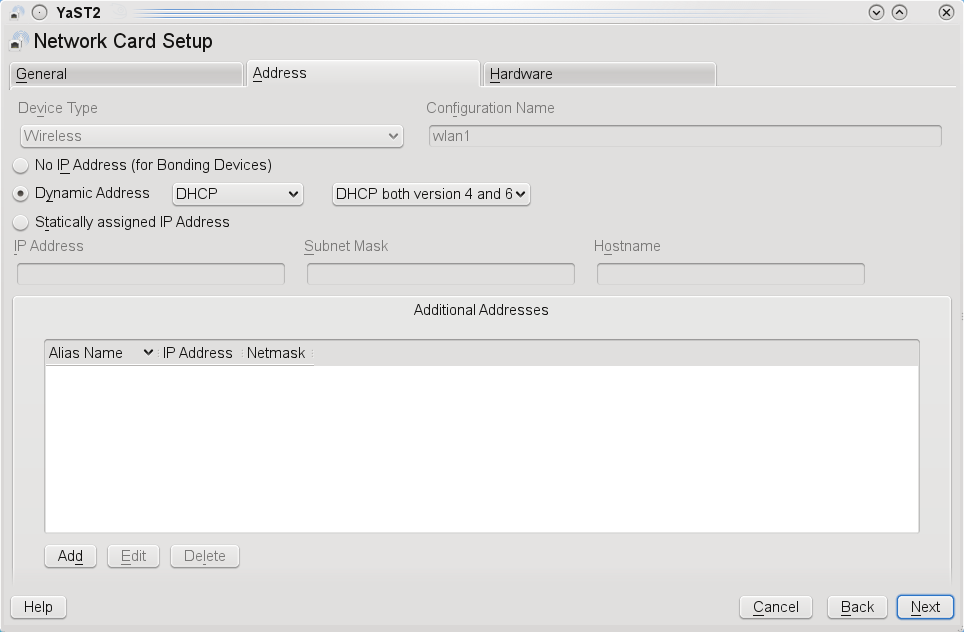
Screen 3


DHCP
- Start YaST's network configuration: Network Devices → Network Card
- Go to the "Overview" tab
- Choose: "Add" button in lower half
- Choose:
- Device Type: "Wireless"
- Configuration Name: "0" (or whatever :))
- Hardware Configuration Name: "static-0"
- Module Name: "ndiswrapper"
- Options: "" (keep empty)
- Do not select "PCMCIA" nor "USB"
- ... and finally "Next"
- On next screen select DHCP in "Hostname and Name Server" and in "Advanced → DHCP Options", then click "Next"
- In "Wireless Network Card Configuration"-window choose (= keep the defaults):
- Operation Mode: "Managed"
- Network Name (ESSID): "" (keep empty)
- Authentication Mode: "Open"
- Input Type: "Passphrase"
- Encryption Key: "" (keep empty)
- .. . and finally "Next"
- the kwallet manager might open -- give him your password and ignore this opening (it doesn't do anything)
- ignore the warning that "Encryption is doing on own risk"
- back in "Network Card Configuration Overview" choose "Next"
Your card is configured.
You might now open the Network Manager in your taskbar (kicker) and select one of the found networks. Disable your wire connection (if connected), and access the internet.
If your SSID (wireless network name) is not broadcasted, you can select an own, specific one in the Network Manager.
Potential conflicts & issues
Connection problems
Once you have ndiswrapper working you will see that the LED for the wireless card lights up with network start, i.e. at boot or in response to the command rcnetwork restart
You will be able to see the available networks via the KDE network manager or by issuing the command issued as root:
su -c 'iwlist wlan0 scan'
You may need to change wlan0 to match your wireless interface
So you find your preferred network and attempt to connect. However, there are few pitfalls to avoid...
The release notes for openSUSE 11.1 state that there is no out of the box support for channels 12-14 inclusive. By default, the WLAN channels 12, 13, and 14 are disabled because it is not allowed to use these channels everywhere. If you want to use them in your region, see http://en.opensuse.org/Tracking_down_wireless_problems for more information.
So make sure your router isn't using these channels unless you have manually enabled them as described in the URL above.
I have also found problems with channels 1,2 and 3 on my Netgear DG834PN and with a Thompson Speedtouch from BeThere. I found that connection was near impossible with WPA-PSK enabled and really unreliable without encryption. The signal kept dropping and habitually fell back to 11Kbps.
What I would recommend is to disable all security. Place the laptop physically next to the router and check the reported signal strength. Channels with problems will be reported as less than 100%. For example, I found with my laptop, that channel 1 only reported 70% when the laptop and router were within millimeters of one another.
Once you have a channel that reports 100% try connecting. Only once the connection is working reliably without security should you enable it, for say WPA-PSK.
NDISwrapper is not loaded
You can check whether the NDISwrapper kernel module is loaded by running
lsmod | grep ndiswrapper
If the command return no output, you need to load NDISwrapper. Run
su -
to obtain root permission, and then
modprobe ndiswrapper
After modprobe has run, if you've configured your card in YaST, then you can run
rcnetwork restart
that is the same as (just lesser typing)
/etc/init.d/network restart
to restart your network manager and the card should activate correctly.
Loading NDISwrapper at boot
One method that can work is to edit your network script in /etc/init.d/network.
Add in a line that says modprobe ndiswrapper before it gets to the actual
networking script so that ndiswrapper is loaded prior to the script running.
Note, this should not be required if you configure your wireless interface with YaST
and enter 'ndiswrapper' in the 'module name' field. This should load the ndiswrapper kernel
module at boot.
Another method is to edit the config file /etc/sysconfig/kernel, by adding ndiswrapper into MODULES_LOADED_ON_BOOT section (e.g.: MODULES_LOADED_ON_BOOT="ndiswrapper").
In some cases (USB wlan?) configuring the wireless interface with YaST, does not load the ndiswrapper module automatically. To get you wlan card to work at boot time, you have to edit your network script in /etc/init.d/network (as described above).
Compiling from source with 1.46 and above
Ndiswrapper 1.46 and above require a 2.6.17 or higher kernel in order to compile properly. Only OpenSUSE version 10.2 and newer ship with 2.6.17+ kernels; users of previous SUSE versions will need to either upgrade their kernel or use a version equal to or older than 1.45. Naturally, users who opt for the precompiled ndiswrapper-kmp-<flavor> packages that ship with the CDs/DVDs can ignore this issue.
Conflicts with NetworkManager
If you are unable to connect to wireless network using NetworkManager, you may be able to connect using ifup to configure the wireless connection (IP address, encryption, authenication, etc) via YaST.
Hardware specific information
Atheros
If you have Atheros based card it is recommended that you try madwifi first. If you can't get madwifi to work then NDISwrapper will most likely do the job, although you may experience some minor issues. See Atheros madwifi for more information.
For the AR5005G (frequently used in laptops) you will need a more recent of the windows drivers. If you have access to the installation under windows you can copy the drivers from C:\Program Files\Atheros\Driver
You can also try to extract it from the Windows Driver CD or you can download the 32bit Atheros wireless driver here (This is provided as last-resort if you have no other ways to get the driver.) If you are using the 64bit version of openSUSE (x86_64), you will need the driver for 64 bit Windows.